 Meziantou.Framework
QR codes
editChoose the kind of QR code
| Kind | Method | Size in modules | Standard |
|---|---|---|---|
| Standard QR code | QRCode.Create | 21×21 to 177×177 (versions 1 to 40) | ISO/IEC 18004 |
| Micro QR code | QRCode.CreateMicroQR | 11×11 to 17×17 (versions M1 to M4) | ISO/IEC 18004 |
| Rectangular Micro QR code (rMQR) | QRCode.CreateRMQR | Rectangular, wider than high | ISO/IEC 23941 |
// Standard QR code
var standardQr = QRCode.Create("HELLO WORLD", ErrorCorrectionLevel.H);

// Micro QR code (smaller, single finder pattern)
var microQr = QRCode.CreateMicroQR("12345", ErrorCorrectionLevel.L);

// Rectangular Micro QR code (narrow rectangular shape)
var rmqr = QRCode.CreateRMQR("https://www.meziantou.net", ErrorCorrectionLevel.M);

// Format info: type, width and height in modules
Assert.Equal((QRCodeType.Standard, 25, 25), (standardQr.Type, standardQr.Width, standardQr.Height));
Assert.Equal((QRCodeType.MicroQR, 11, 11), (microQr.Type, microQr.Width, microQr.Height));
Assert.Equal((QRCodeType.RMQR, 43, 13), (rmqr.Type, rmqr.Width, rmqr.Height));
A standard QR code is what every phone reads. Use a Micro QR code or an rMQR code only when the space is too small and you know the scanners support them: a Micro QR code has a single finder pattern and holds a few characters, an rMQR code fits in a narrow strip, such as the edge of a label.
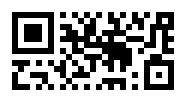
var microQr = QRCode.CreateMicroQR("12345");
var rmqr = QRCode.CreateRMQR("HELLO WORLD");

Assert.Equal((1, 11, 11), (microQr.Version, microQr.Width, microQr.Height));
Assert.Equal((27, 13), (rmqr.Width, rmqr.Height));

using var microImage = microQr.ToImage(new QRCodeRenderOptions { ModuleSize = 6, QuietZoneModules = 2 });
using var rmqrImage = rmqr.ToImage(new QRCodeRenderOptions { ModuleSize = 6, QuietZoneModules = 2 });
Choose the error correction level
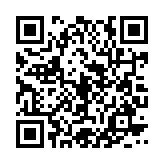
The error correction level says how much of the code can be damaged or hidden and still be read. A higher level stores more redundancy, so the same data takes a larger code:
| Level | Recovers about |
|---|---|
| ErrorCorrectionLevel.L | 7% |
| ErrorCorrectionLevel.M | 15% (the default of Create and CreateRMQR) |
| ErrorCorrectionLevel.Q | 25% |
| ErrorCorrectionLevel.H | 30% |
var low = QRCode.Create("https://www.meziantou.net", ErrorCorrectionLevel.L);
var high = QRCode.Create("https://www.meziantou.net", ErrorCorrectionLevel.H);

// More redundancy takes more modules: the version is the smallest one that holds the data
Assert.Equal((2, 25), (low.Version, low.Width));
Assert.Equal((4, 33), (high.Version, high.Width));

using var lowImage = low.ToImage(new QRCodeRenderOptions { ModuleSize = 4 });
using var highImage = high.ToImage(new QRCodeRenderOptions { ModuleSize = 4 });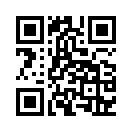
- Use H when a logo covers the middle of the code (see Add a logo), or when the printed code can get dirty or scratched.
- Not every kind supports every level. Micro QR versions M2 and M3 support L and M, M4 supports L, M and Q, and M1 only detects errors (its ErrorCorrectionLevel is reported as L). CreateMicroQR uses L by default. rMQR codes support M and H only. A level the kind does not support, or a value that is not a member of ErrorCorrectionLevel, throws an
ArgumentOutOfRangeException. - QRCode.ErrorCorrectionLevel gives the level the code was built with, and Version its version.
Choose the size of the code
By default, a code has the smallest size that holds the data. To print codes of a fixed size, or to make sure a code fits a known space, constrain the number of modules:
- QRCodeOptions.MinimumVersion and QRCodeOptions.MaximumVersion bound the version of a standard QR code (1 to 40); set both to the same value for an exact version.
- MicroQRCodeOptions.MinimumVersion and MicroQRCodeOptions.MaximumVersion do the same for Micro QR codes (1 to 4, M1 to M4).
- RMQRCodeOptions.Height and RMQRCodeOptions.Width set the exact height (7 to 17 modules) or width (27 to 139 modules) of an rMQR code, and RMQRCodeOptions.MaximumHeight and RMQRCodeOptions.MaximumWidth bound them. Among the allowed sizes, the code has the one with the fewest modules.
// Every label gets a version 4 code (33 × 33 modules), whatever the length of its data
var exact = new QRCodeOptions { MinimumVersion = 4, MaximumVersion = 4 };
var shortLabel = QRCode.Create("A1", ErrorCorrectionLevel.Q, exact);
var longLabel = QRCode.Create("https://example.com/items/1234", ErrorCorrectionLevel.Q, exact);
Assert.Equal((33, 33), (shortLabel.Size, longLabel.Size));

// A code that must fit in the space of a version 2 code: larger data throws instead of giving a larger code
var bounded = new QRCodeOptions { MaximumVersion = 2 };
Assert.Throws<InvalidOperationException>(() => QRCode.Create(new string('x', 100), ErrorCorrectionLevel.M, bounded));

// The Micro QR version, and the rMQR height and width, in modules
var microQr = QRCode.CreateMicroQR("12345", ErrorCorrectionLevel.L, new MicroQRCodeOptions { MinimumVersion = 3, MaximumVersion = 3 });
var rmqr = QRCode.CreateRMQR("12345", ErrorCorrectionLevel.M, new RMQRCodeOptions { MaximumHeight = 7 });
Assert.Equal((15, 15), (microQr.Width, microQr.Height));
Assert.Equal((43, 7), (rmqr.Width, rmqr.Height));

// The size of the image is set by the renderer: 33 modules of 10 pixels, plus a quiet zone of 4 modules on each side
using var image = shortLabel.ToImage(new QRCodeRenderOptions { ModuleSize = 10 });- Data that does not fit in the largest allowed size throws an
InvalidOperationException: the code is never larger than requested. Data smaller than the capacity of the size is padded. - Constraints that no size satisfies throw an
ArgumentException: a minimum version greater than the maximum one, an rMQR height and width that do not make a size (such as 7 × 27), or Micro QR versions that do not support the error correction level (M1 has no error correction, only M4 supports Q). - These options set the number of modules. The size of the image is set by the renderer: its module size gives the pixels (or SVG units) of a module, and the quiet zone adds a margin. Scaling the image does not change the version, so it does not change how much data the code holds.
How the data is encoded
A QR code stores text in modes that take more or fewer bits per character:
- Digits only take the fewest bits.
- Uppercase letters, digits, the space and
$%*+-./:(the alphanumeric mode) take fewer bits than other characters. - A text whose characters are all double-byte Shift JIS characters, such as Japanese kanji and kana, is encoded in the kanji mode. Only the characters of JIS X 0208 that every reader decodes to the same character qualify: the few codes that the Shift JIS tables of readers disagree on (
¢,£,¬,―,\,〜,‖,−and their fullwidth forms) and the vendor extensions, such as①, are encoded as UTF-8. - Any other text is encoded as UTF-8 in the byte mode. Create also takes bytes, encoded as they are.
Create encodes a text in the most compact mode that can hold all its characters, or splits it into segments of different modes when that gives a smaller code, such as a long number after a few lowercase letters. Each segment has a header of a few bits, so short runs stay in the mode of their neighbors. Without an ECI designator (see below), readers guess the encoding of each byte-mode segment, so a text with non-ASCII characters other than kanji and kana is not split: it stays in one byte-mode segment.
// Uppercase letters, digits and " $%*+-./:" take fewer bits than other characters
Assert.Equal(2, QRCode.Create("HTTPS://WWW.EXAMPLE.COM/BLOG/QRCODE").Version);
Assert.Equal(3, QRCode.Create("https://www.example.com/blog/qrcode").Version);

// Digits alone take even fewer
Assert.Equal(1, QRCode.Create("0123456789012345678901234567890123").Version);

// Any other text is encoded as UTF-8, and binary data as it is
Assert.Equal(1, QRCode.Create("Caf\u00E9").Version);
Assert.Equal(1, QRCode.Create([0x00, 0x01, 0xFE, 0xFF]).Version);

// A text that mixes kinds of characters is split into segments of different modes when it gives a smaller code:
// the lowercase letters in byte mode, the order number in numeric mode
Assert.Equal(1, QRCode.Create("order 1234567890123456").Version);
Assert.Equal(2, QRCode.Create(Encoding.UTF8.GetBytes("order 1234567890123456")).Version);
CreateMicroQR and CreateRMQR split a text the same way, with the modes of each version: Micro QR version M1 holds digits only, M2 digits and alphanumeric characters, M3 and M4 every mode.
// Micro QR and rMQR codes split a text into segments of different modes, like standard QR codes: the lowercase
// letters in byte mode, the digits in numeric mode
var microQr = QRCode.CreateMicroQR("abc12345678");
var rmqr = QRCode.CreateRMQR("Order 12345678901234567890");
Assert.Equal((3, 15, 15), (microQr.Version, microQr.Width, microQr.Height));
Assert.Equal((43, 11), (rmqr.Width, rmqr.Height));

// The same text in a single byte segment needs a larger symbol
var microQrByte = QRCode.CreateMicroQR([QRCodeSegment.CreateByte("abc12345678")]);
var rmqrByte = QRCode.CreateRMQR([QRCodeSegment.CreateByte("Order 12345678901234567890")]);
Assert.Equal((4, 17, 17), (microQrByte.Version, microQrByte.Width, microQrByte.Height));
Assert.Equal((43, 13), (rmqrByte.Width, rmqrByte.Height));
The scheme and the host name of a URL are not case-sensitive, so an uppercase URL can give a smaller code, provided the path of the site accepts uppercase too.
Data too long for the largest version throws an InvalidOperationException; empty data throws an ArgumentException.
Declare the encoding with ECI
By default, the byte mode holds UTF-8 with nothing that says so, and readers guess the encoding. Most guess UTF-8 right, but a few bytes can look like another encoding: a reader can show ¢ as 瞽. An ECI (Extended Channel Interpretation) designator declares the encoding. Set QRCodeOptions.EciAssignmentNumber to QRCodeOptions.Utf8EciAssignmentNumber (26) to declare a text as UTF-8, or to any assignment number for bytes you encoded yourself:
// Declare the text as UTF-8 (ECI assignment number 26), so that readers do not guess its encoding
var options = new QRCodeOptions { EciAssignmentNumber = QRCodeOptions.Utf8EciAssignmentNumber };
var qrCode = QRCode.Create("Caf\u00E9 cr\u00E8me", ErrorCorrectionLevel.M, options);

// Binary data can declare any encoding, such as ISO-8859-1 (ECI assignment number 3)
var latin1 = QRCode.Create([0x63, 0x61, 0x66, 0xE9], ErrorCorrectionLevel.M, new QRCodeOptions { EciAssignmentNumber = 3 });- ECI is opt-in, so the codes created without options do not change. Most current readers support it; very old ones can show the designator as text or fail to read the code.
- The designator takes 12 to 28 bits, which can give a larger code. A text with an ECI designator is never encoded in the kanji mode, and it is split into segments whatever its characters.
- A text accepts only the assignment number 26, since it is encoded as UTF-8: another one throws an
ArgumentException. Encode the text yourself and pass the bytes to declare another encoding. - Micro QR codes cannot hold an ECI designator, and CreateRMQR does not write one.
Choose the segments yourself
To control how the data is encoded, pass the segments to Create, CreateMicroQR or CreateRMQR. A QRCodeSegment is a run of data in one mode, and the code holds the segments as they are, in order:
| Method | Holds |
|---|---|
| QRCodeSegment.CreateNumeric | Digits |
| QRCodeSegment.CreateAlphanumeric | Digits, uppercase letters, the space and $%*+-./: |
| QRCodeSegment.CreateByte | Bytes, or a text as UTF-8 |
| QRCodeSegment.CreateKanji | Kanji and kana that every reader decodes the same way |
| QRCodeSegment.CreateEci | An ECI designator: the encoding of the byte segments that follow it |
Choose the segments yourself to mix bytes in several encodings, each after its ECI designator, to put digits or uppercase letters of binary data in their own mode, or to split a non-ASCII text that has an ECI designator your own way:
// An ISO-8859-1 text followed by a long number: the text in byte mode, after an ECI designator that declares its
// encoding (assignment number 3), and the digits in numeric mode
QRCodeSegment[] segments =
[
    QRCodeSegment.CreateEci(3),
    QRCodeSegment.CreateByte(Encoding.Latin1.GetBytes("Facture n\u00B0")),
    QRCodeSegment.CreateNumeric("12345678901234567890123456789012345"),
];
var qrCode = QRCode.Create(segments, ErrorCorrectionLevel.M);

// The same bytes in a single byte segment need a larger symbol
var bytes = Encoding.Latin1.GetBytes("Facture n\u00B012345678901234567890123456789012345");
var singleSegment = QRCode.Create(bytes, ErrorCorrectionLevel.M, new QRCodeOptions { EciAssignmentNumber = 3 });
Assert.Equal((3, 4), (qrCode.Version, singleSegment.Version));- A character the mode cannot encode, or an empty segment, throws an
ArgumentExceptionwhen you create the segment. A list without a segment of data throws anArgumentExceptiontoo. - Each segment has a header of 12 to 20 bits in a standard QR code (fewer in Micro QR and rMQR codes), so a short segment can take more room than it saves. The automatic segmentation of a text takes these headers into account.
- QRCodeOptions.EciAssignmentNumber adds an ECI designator before the segments, with any assignment number.
- Micro QR codes and rMQR codes have no ECI designator: a segment from CreateEci throws an
ArgumentException. Micro QR version M1 holds a single numeric segment, and M2 numeric and alphanumeric segments only.
Split the data across several codes
A structured append sequence splits data across up to 16 standard QR codes, which readers that support it put back together in order. Use it for data too large for one code, or to print several small codes instead of a large one. QRCode.CreateStructuredAppend takes a text, bytes or segments, and returns the codes in order:
var data = string.Concat(Enumerable.Repeat("The quick brown fox jumps over the lazy dog. ", 30));

// Symbols of version 10 at most (57 × 57 modules), instead of one symbol of version 30 (137 × 137 modules)
var symbols = QRCode.CreateStructuredAppend(data, ErrorCorrectionLevel.M, new QRCodeOptions { MaximumVersion = 10 });
Assert.Equal(7, symbols.Count);
Assert.Equal((10, 30), (symbols[0].Version, QRCode.Create(data, ErrorCorrectionLevel.M).Version));

// Each symbol knows its position in the sequence
Assert.Equal((0, 7), (symbols[0].StructuredAppend!.Index, symbols[0].StructuredAppend!.Count));
Assert.Equal((6, 7), (symbols[6].StructuredAppend!.Index, symbols[6].StructuredAppend!.Count));

// Print the symbols in order, side by side
var documents = symbols.Select(symbol => symbol.ToSvg(new QRCodeRenderOptions { ModuleSize = 4 })).ToList();- QRCodeOptions.MaximumVersion sets the largest code. The sequence has the fewest codes that an allowed version gives, then every code has the smallest version that needs no more codes. The fewest codes usually come from the largest version, but not always: the segment headers grow at versions 10 and 27, so many short segments can fit in fewer version 9 codes than version 10 ones. Data that does not fit in 16 codes throws an
InvalidOperationException; data that fits in one code gives a sequence of one code. - Each code holds the next part of the data, split into segments like a text given to Create. A text is never split in the middle of a character, and each code repeats the ECI designator, so each code also reads alone. Bytes and segments are split between two bytes or two characters.
- QRCode.StructuredAppend gives the Index of a code in the sequence, the Count of codes, and the Parity of the data, which is the same in every code of the sequence. It is
nullfor a code that holds all its data. - Print the codes in order, near each other. A reader that does not support structured append reads each code alone, as a part of the data.
Read the modules
A QRCode is a grid of modules: Width columns and Height rows (Size is the side of a square code), and the indexer tells whether a module is dark. Use it to render the code your own way:
var qrCode = QRCode.Create("HELLO");

// The modules, row by row: true for a dark module
var text = new StringBuilder();
for (var row = 0; row < qrCode.Height; row++)
{
    for (var column = 0; column < qrCode.Width; column++)
    {
        text.Append(qrCode[row, column] ? '#' : '.');
    }

    text.Append('\n');
}

Assert.StartsWith("#######.", text.ToString()); // the top-left finder pattern, then its separator
The grid does not include the quiet zone: leave a light margin around the modules when you draw them.